
I’ll never forget the first time I plugged a controller into COD Mobile. I thought I’d instantly dominate since I’d been playing console shooters for years. Instead, I got absolutely demolished. My aim felt floaty, my movements were sluggish, and I kept hitting the wrong buttons in gunfights. It was embarrassing, honestly.
Then I spent an evening in the practice range tweaking every setting, testing different sensitivities, and adjusting my button layout. The difference was incredible. Suddenly, my muscle memory kicked in, my shots were landing, and I was actually winning gunfights against players I’d been losing to all week.
Finding the best controller settings for COD Mobile isn’t about copying some pro player’s exact setup. It’s about understanding what each setting does and customizing them to match your playstyle and hardware. Whether you’re using a PlayStation controller, Xbox pad, or one of those fancy mobile gaming controllers, this guide will help you optimize every aspect of your configuration.
We’re covering sensitivity settings, button layouts, advanced options, and those hidden settings most players don’t even know exist. By the end, you’ll have a controller setup that feels natural, responsive, and gives you a genuine competitive edge. Let’s turn you into the player who makes everyone else wonder what controller you’re using.
Why Controller Settings Matter in COD Mobile
Before we dive into specific numbers and configurations, let’s talk about why controller settings are absolutely critical in COD Mobile. This isn’t like console Call of Duty where everyone’s working with the same input method. You’re competing against touch players, different controller types, and various device capabilities.
COD Mobile’s default controller settings are designed to work for everyone, which means they’re optimized for no one. They’re conservative, safe, and honestly pretty mediocre for competitive play. The default sensitivity is too low for quick flicks, the button layout wastes valuable inputs, and the aim assist settings aren’t configured for maximum effectiveness.
Here’s something most players don’t realize: COD Mobile treats controller input differently than touch input. You’re not just getting a different control method—you’re playing with different mechanics entirely. The aim assist works differently, the movement has different acceleration curves, and even your hitboxes interact with the game slightly differently.
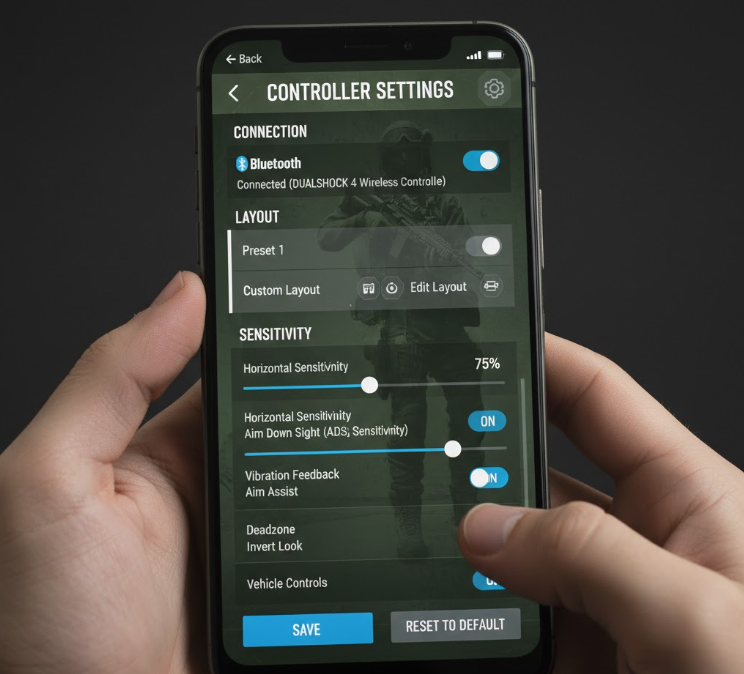
Your controller setup directly impacts your ability to track moving targets, snap to enemies quickly, control recoil, and execute movement techniques like slide cancels and jump shots. Get these settings wrong, and you’re handicapping yourself against players who’ve optimized their configurations.
The beautiful thing about controller optimization is that it’s free performance. You’re not buying better hardware or upgrading your phone—you’re just unlocking the potential that was already there. I’ve seen players jump from negative K/D ratios to 2.0+ just by fixing their sensitivity and button layout.
Understanding Sensitivity Settings
Sensitivity is the foundation of your entire controller setup. Get this wrong, and everything else falls apart. Too high, and you’ll overshoot targets and struggle with recoil control. Too low, and you’ll lose close-range gunfights because you can’t turn fast enough.
COD Mobile has multiple sensitivity settings that work together: Camera Sensitivity, ADS Sensitivity, and Gyroscope Sensitivity if you’re using that feature. Understanding how these interact is crucial for finding your sweet spot.
Camera Sensitivity controls your look speed when not aiming down sights. This is your hip-fire sensitivity and what you use for general movement and awareness. I run mine at 65-70, which gives me quick 180-degree turns without feeling uncontrollable. Most competitive players sit between 60-75 here.
ADS Sensitivity affects your aim speed when looking through your weapon’s sights. This should almost always be lower than your camera sensitivity because you need precision for landing shots. I use 45-50 for standard ADS and 35-40 for tactical scopes. The multiplier system lets you set different sensitivities for different scope types, which is incredibly useful.
Here’s a trick that changed my game: set your hip-fire sensitivity higher than you think you need, then adjust your ADS sensitivity until tracking feels comfortable. Your brain adapts to the hip-fire speed quickly, but precise aiming requires more deliberate calibration.
Test your sensitivity in the training mode against moving bots. Can you track them smoothly while ADS? Can you snap between targets without overshooting? Can you control vertical recoil comfortably? If you’re answering no to any of these, adjust accordingly.
Don’t copy pro settings blindly. A streamer running 80/60 sensitivity might have years of FPS experience and superhuman aim. If you’re coming from slower games or just starting with controllers, you’ll want something more moderate. Build up gradually rather than jumping straight to high sens and developing bad habits.
Optimal Sensitivity Ranges by Playstyle
Your ideal sensitivity depends heavily on how you play COD Mobile. Aggressive rushers need different settings than tactical players holding angles. Let’s break down recommended ranges for different playstyles.
Aggressive SMG/Shotgun Players: You need high mobility and quick target acquisition. Camera Sensitivity: 70-85, ADS Sensitivity: 50-65. This lets you snap to targets in close quarters and turn on enemies quickly. The higher ADS sensitivity works because SMG engagements happen at ranges where tracking is more important than pixel-perfect precision.
Assault Rifle All-Rounders: Balanced settings for medium-range dominance. Camera Sensitivity: 60-75, ADS Sensitivity: 45-55. This gives you adequate turn speed while maintaining the precision needed for mid-range gunfights. Most players fall into this category, and these settings offer the best versatility.
Sniper/Marksman Players: Lower sensitivity for precise flicks and drag scoping. Camera Sensitivity: 55-70, ADS Sensitivity: 35-50. You still need decent turn speed for repositioning, but your ADS sensitivity should be lower to nail those crucial shots. Use the scope multiplier to go even lower for 4x and higher magnification optics.
LMG/Support Players: Moderate settings prioritizing recoil control. Camera Sensitivity: 55-65, ADS Sensitivity: 40-50. LMGs have more recoil to manage, so slightly lower sensitivity helps keep your aim on target during sustained fire. You’re holding positions rather than rushing, so you don’t need the highest turn speeds.
I personally run a hybrid approach: 68 camera sensitivity with 48 standard ADS and 38 for tactical scopes. This lets me play aggressively with SMGs but switch to AR or sniper when needed without feeling completely off. Experiment within these ranges to find what clicks for you.
Button Layout Configuration
Button layout is where most players leave massive amounts of performance on the table. The default layout is functional but far from optimal. Customizing your button mapping can dramatically improve your movement options and gunfight effectiveness.
First, let’s talk about the jump and slide buttons. In competitive COD Mobile, movement is survival. You need to jump shot, slide cancel, and dropshot frequently. If these actions require moving your thumbs off the sticks, you’re creating vulnerable moments where you can’t aim.
I recommend mapping jump to R3 (right stick click) if you’re not using it for melee already. This lets you jump while maintaining full aim control, which is essential for jump shotting around corners. Some players prefer mapping it to a back button if their controller has those, which is even better.
Slide should be easily accessible without removing your thumb from movement. L3 (left stick click) is the natural choice, but some controllers let you sprint by simply pushing the stick forward, freeing L3 for slide. Experiment with what feels most natural for your specific controller.
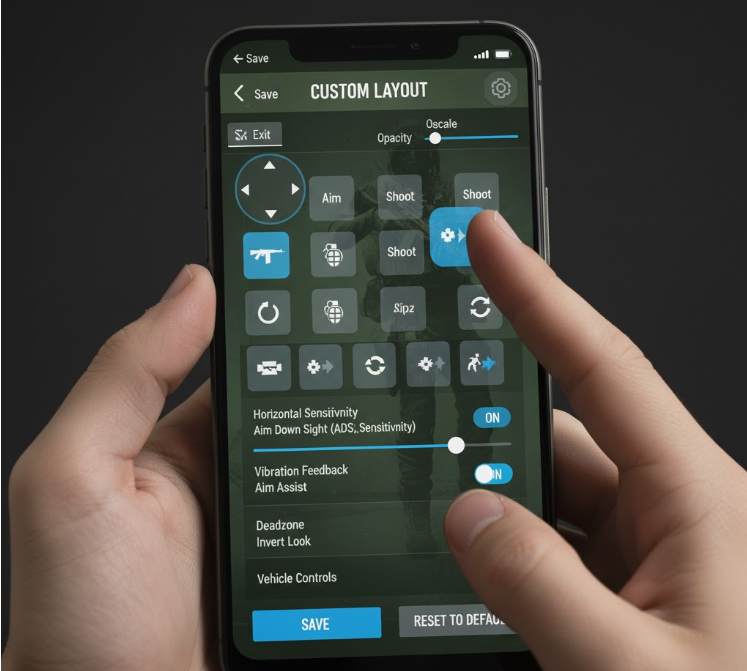
Tactical button layout versus default is an ongoing debate. Tactical swaps crouch and melee, which makes dropshotting easier but melee harder to access. I prefer tactical because winning gunfights matters more than panic knifing, but this is personal preference.
Consider mapping prone to a face button rather than holding crouch. Quick access to going prone can save your life in certain situations, especially when you need to dodge grenades or drop behind cover instantly.
For controllers with additional buttons or paddles (like Xbox Elite or SCUF), map your most-used actions to those back buttons. Jump, slide, reload, and weapon swap are all excellent candidates. This lets you perform complex movement without ever removing thumbs from sticks.
Advanced Controller Options
The advanced settings menu in COD Mobile contains options that most players never touch, but they’re absolutely crucial for maximizing controller performance. These settings fine-tune how your inputs translate into in-game actions.
Aim Assist Type matters more than you’d think. Standard aim assist provides general slowdown when your crosshair passes over enemies. Precision aim assist offers stronger slowdown in a tighter area around the target. For controller players, I strongly recommend Precision. It pairs better with analog stick aiming and helps with tracking moving targets.
Aim Assist Distance controls how far away the assistance kicks in. Default setting works at all ranges, which sounds good but actually dilutes the effect. I set mine to “Close to Medium Range” because that’s where most gunfights happen, and concentrating the assist strength at those ranges makes it more effective.
Dead Zone settings control how much you need to move your stick before input registers. Lower dead zone means more responsive aiming but also means stick drift can cause unwanted movement. I run 5-8% dead zone on both sticks—low enough for responsiveness, high enough to prevent drift issues.
Aim Acceleration determines how quickly your turn speed increases when you max out stick movement. Lower acceleration gives more consistent, predictable aim. Higher acceleration lets you whip around faster but can feel less controlled. I prefer lower acceleration (around 3-4 out of 10) for more precise aim.
Hip Fire Accuracy setting is hidden in advanced options. This affects your crosshair spread when not ADS. Tighter is almost always better, especially if you use laser sights on your weapons. Set this to maximum tightness unless you’re experiencing frame rate issues on older devices.
Aim Assist Configuration
Aim assist on controllers in COD Mobile is often misunderstood. It’s not aimbot, but it’s also not negligible. Properly configured aim assist significantly improves your ability to track targets and land shots, especially on smaller mobile screens.
The key is understanding what aim assist does and doesn’t do. It provides rotational aim assist (helps you track moving targets) and slowdown (reduces your sensitivity when over enemies). It does NOT pull your crosshair onto targets automatically. You still need good aim; the assist just makes it slightly easier.
Target Priority affects which enemy the aim assist locks onto when multiple targets are present. “Closest to Crosshair” is almost always the right choice. “Closest to Player” can cause your aim to snap to unintended targets who happen to be physically closer even if you’re aiming at someone else.
Aim Assist Strength is a slider most players don’t know exists. It’s buried in advanced settings, but it’s crucial. Default is usually around 70%. I run mine at 85-90% because I’m on controller and need that extra tracking help. Going to 100% can actually feel too strong and interfere with your own aim corrections.
Aim Assist Response affects how quickly the assist kicks in. Faster response means more immediate help but can feel “sticky” or sluggish. Slower response feels more natural but provides less assistance. I prefer slightly slower response (around 60-70%) because it lets me initiate aim, then the assist supports rather than fights me.
One controversial tip: practice sometimes with aim assist turned completely off. This forces you to develop raw aim skill. When you turn assist back on, your fundamentals will be stronger, and you’ll use the assist as a supplement rather than a crutch. I do one aim training session per week with assist disabled, and it’s noticeably improved my overall accuracy.
Comparison of Popular Controller Types for COD Mobile
| Controller Type | Connection Stability | Input Lag | Ergonomics | Battery Life | Best For | Price Range |
|---|---|---|---|---|---|---|
| PlayStation 5 DualSense | Excellent (Bluetooth/USB) | Very Low | Excellent | 8-12 hours | All playstyles, console players | $60-75 |
| Xbox Series Controller | Excellent (Bluetooth/USB) | Very Low | Excellent | 30+ hours (AA batteries) | All playstyles, Xbox players | $50-65 |
| Backbone One | Perfect (Direct connection) | Minimal | Good (device-dependent) | N/A (powered by phone) | Mobile-first players | $100 |
| Razer Kishi V2 | Perfect (Direct connection) | Minimal | Very Good | N/A (powered by phone) | Competitive mobile players | $100-120 |
| Generic Bluetooth | Variable | Moderate-High | Variable | Variable | Budget-conscious players | $20-40 |
| SCUF/Elite Controllers | Excellent | Very Low | Excellent (customizable) | 10-15 hours | Competitive players | $150-200+ |
Your controller choice impacts optimal settings. Direct-connection controllers (Backbone, Kishi) can handle slightly higher sensitivity because input lag is minimal. Bluetooth controllers might need slightly lower sensitivity to compensate for the tiny input delay.
Device-Specific Optimization
Your phone or tablet impacts controller performance more than most players realize. Different devices have different processing power, screen refresh rates, and Bluetooth capabilities. Optimizing your settings for your specific hardware is crucial.
For high-end devices (iPhone 14 Pro+, Samsung S23 Ultra+), you can push graphics settings higher without impacting controller responsiveness. Max out your frame rate settings—120fps if your device supports it. Higher frame rates make controller input feel more responsive and tracking smoother.
Mid-range devices require more careful optimization. You might need to lower graphics quality to maintain stable frame rates, which directly impacts how smooth your controller feels. Prioritize frame rate over visual quality every single time. A stable 60fps with low graphics beats fluctuating 90fps with high graphics.
For older or budget devices, be aggressive with graphics reductions. Turn off shadows, reduce texture quality, minimize particle effects. Your goal is rock-solid frame stability. Controller aiming feels terrible when frame rate dips, creating inconsistent input response.
Screen size matters for controller play. Smaller phones benefit from slightly higher sensitivity because you’re compensating for reduced visual real estate. Tablets can use lower sensitivity because tracking targets across a larger screen requires less aggressive stick movement.
Bluetooth quality varies by device. If you’re experiencing input lag with wireless controllers, try these fixes: close background apps, disable Bluetooth scanning, ensure your controller has fresh batteries, or switch to a wired USB-C connection if supported. Direct connection via adapters like Backbone eliminates Bluetooth issues entirely.
Training Your Muscle Memory
Having perfect settings means nothing if you haven’t trained your muscle memory to use them effectively. Controller aim is a learned skill that requires dedicated practice, especially if you’re transitioning from touch controls or different sensitivity settings.
Start every session with 10-15 minutes in the practice range. Run through a consistent routine: tracking moving targets, flicking between stationary bots, controlling recoil on different weapons. This warm-up builds muscle memory and ensures you’re not jumping straight into ranked matches cold.
Use the training mode’s moving targets to practice tracking. Follow them smoothly with your crosshair while ADS for 5-10 minutes. This builds the micro-adjustments your thumbs need to make for maintaining aim on mobile targets. It’s boring but incredibly effective.
Practice recoil control patterns on different weapons. Each gun in COD Mobile has unique recoil behavior. Spend time with your favorite weapons learning their specific patterns and how much you need to pull down (or sideways) to keep bullets on target. Controller recoil control is all about consistent, small stick movements.
Do the flick shot challenge: line up multiple bots in practice mode and snap between them as quickly as possible while still landing shots. This trains your flick accuracy and helps you find your optimal turn speed. If you’re consistently overshooting, lower your sensitivity slightly.
Don’t practice bad habits. If you’re missing shots in practice, slow down and focus on accuracy over speed. Speed comes naturally as muscle memory develops. Training sloppy aim just reinforces sloppy aim. Quality reps beat quantity every time.
Common Mistakes to Avoid
Even with great settings, certain mistakes will sabotage your controller performance. I’ve made all of these errors myself, and fixing them dramatically improved my gameplay.
Constantly changing sensitivity is the number one mistake. You find settings that work, then you have one bad game and immediately start tweaking everything. Stop. Give your settings at least 20-30 matches before making changes. Your brain needs time to adapt. Constant changes prevent muscle memory from developing.
Ignoring deadzones causes more problems than players realize. If your crosshair drifts when you’re not touching the sticks, your deadzone is too low. If your aim feels sluggish and unresponsive, it’s too high. Find the sweet spot for your specific controller—every controller has slightly different stick sensitivity.
Playing with low battery in wireless controllers introduces input lag as battery drains. I’ve learned this the hard way multiple times. Keep your controller charged or use fresh batteries. That “inconsistent aim” you’re experiencing might just be dying batteries affecting input response.
Gripping the controller too tightly causes fatigue and reduces precision. Hold it firmly but not in a death grip. Your thumbs should move fluidly on the sticks, not fight against tense forearms. If your hands hurt after a session, you’re gripping too hard.
Neglecting button customization because default “works fine” leaves performance on the table. Just because you can win with default layout doesn’t mean it’s optimal. Customizing buttons to reduce thumb movement and enable advanced techniques will elevate your gameplay regardless of current skill level.
Settings for Different Game Modes
Different COD Mobile modes reward different playstyles, which means your settings might need minor adjustments depending on what you’re playing.
For Battle Royale, I lower my sensitivity by 5-10 points across the board. Engagements happen at longer ranges, and you have more time to aim. Lower sensitivity helps with those 100+ meter AR duels and long-range sniper shots. I also turn up my ADS sensitivity multiplier for 4x-6x scopes since I use them more frequently in BR.
Multiplayer modes like Domination and Hardpoint reward aggressive play. Higher sensitivity helps you snap between multiple targets and turn on enemies quickly. I run my standard sensitivity here with maybe a slight bump to camera sensitivity for faster repositioning between objectives.
Search and Destroy requires precision and patience. I actually lower my ADS sensitivity slightly because most gunfights are tactical, position-based engagements where that first shot accuracy matters more than rapid target switching. The slower pace lets me prioritize precision over speed.
Team Deathmatch and smaller modes benefit from balanced settings. You’re not holding angles like S&D or engaging at extreme range like BR. Standard all-around sensitivity works best here. This is actually where I test new sensitivity settings because the fast respawns let me iterate quickly without the penalty of BR or S&D deaths.
Ranked matches deserve your best, most comfortable settings. Don’t experiment in ranked. Use whatever setup you’ve trained with and feel most confident executing. Save the experimentation for casual modes where losses don’t impact your rank progression.
Pro Player Settings Analysis
Looking at what top COD Mobile controller players use can provide valuable insights, but understanding why they use certain settings matters more than copying them exactly.
Most professional controller players run surprisingly moderate sensitivity—not the crazy high settings you might expect. The average is around 65-75 camera and 45-55 ADS. Why? Because consistency and accuracy matter more than raw speed at the highest levels. They’ve trained their speed within moderate sensitivity ranges rather than relying on high sens to compensate for slower movements.
Pros universally customize their button layouts extensively. Jump on R3, slide on L3, and additional movement options mapped to back paddles if available. Advanced movement is non-negotiable in competitive play, and you can’t execute it effectively with thumbs leaving sticks.
Nearly all top players use precision aim assist with the strength turned up to 85-95%. They’re not shy about using every advantage available. The misconception that “good players don’t need aim assist” is wrong—good players optimize aim assist to extract maximum performance.
Professional players also obsess over frame rate stability. They’ll play on lowest graphics settings if it means maintaining consistent frames. Visual beauty means nothing if your controller inputs feel inconsistent due to performance issues.
One interesting pattern: most pros have been using their current sensitivity for months or years. They’re not constantly tweaking. They found settings that work and committed to mastering them. The lesson? Stop chasing perfect settings and start perfecting your execution with good-enough settings.
Troubleshooting Controller Issues
Sometimes your controller isn’t performing well despite optimal settings. Knowing how to diagnose and fix common issues saves frustration and improves your experience.
If you’re experiencing input lag, try these solutions in order: switch from Bluetooth to wired connection if possible, close all background apps on your device, restart both your phone and controller, update your controller firmware, and as a last resort, reset your controller to factory settings and repair it.
Stick drift ruins aim consistency. If your crosshair moves when you’re not touching the sticks, first increase your deadzone slightly. If drift persists even at higher deadzone, your controller might need cleaning (compressed air around the stick base) or the potentiometers might be wearing out, requiring professional repair or replacement.
Inconsistent aim could be frame rate drops rather than controller issues. Enable the FPS counter in settings and monitor it during gameplay. If you see frequent drops below 50fps, reduce your graphics settings. Inconsistent frame timing makes controller aim feel completely different from match to match.
Button inputs not registering consistently suggests battery issues (wireless controllers) or connection problems. For Bluetooth controllers, ensure no other Bluetooth devices are causing interference. For wired controllers, try a different cable—cheap cables can cause intermittent connection issues.
If settings you saved aren’t applying, COD Mobile occasionally resets configurations after updates. Create screenshots of your settings so you can quickly restore them. I keep a photo album on my phone with all my controller configs just for this reason.
Conclusion
Finding the best controller settings for COD Mobile is a journey, not a destination. Your optimal setup depends on your hardware, playstyle, experience level, and personal preferences. The settings that work perfectly for me might feel completely wrong for you, and that’s okay.
What matters is understanding the principles behind each setting so you can make informed adjustments. Start with the recommended ranges in this guide, commit to them for at least 20-30 matches, then make small, deliberate tweaks based on specific issues you’re experiencing. Are you losing close-range fights? Maybe increase sensitivity slightly. Missing long-range shots? Consider lowering ADS sensitivity.
The biggest mistake you can make is constantly changing everything and never giving your muscle memory time to develop. Pick settings that feel reasonable, practice consistently, and trust the process. Your aim will improve dramatically just from repetition with consistent settings, even if those settings aren’t technically “perfect.”
Remember that controller settings are just one piece of the puzzle. Game sense, positioning, weapon choice, and fundamental FPS skills matter just as much as your sensitivity numbers. But optimizing your settings removes a barrier to expressing those skills effectively.
Now take these principles, hit the practice range, and start experimenting. When you find that sweet spot where everything clicks and you’re lasering opponents consistently, come back and share what worked for you. Your journey to controller mastery starts now—make it count.
Frequently Asked Questions
What is the best sensitivity for COD Mobile controller players?
The best sensitivity varies by playstyle, but most competitive controller players use 60-75 camera sensitivity and 45-55 ADS sensitivity. Aggressive SMG players benefit from higher settings (70-80 camera, 50-60 ADS), while sniper players prefer lower precision settings (55-65 camera, 35-45 ADS). Start in the middle range, practice for 20-30 matches, then adjust in small increments based on whether you’re overshooting or undershooting targets. Consistency matters more than finding the “perfect” number.
Should I use gyroscope with a controller in COD Mobile?
Gyroscope with controller is controversial. Some players use it for minor aim adjustments while keeping sensitivity moderate, effectively creating a two-stage aiming system. However, most competitive controller players disable gyroscope because it introduces an additional variable that can conflict with stick input. If you have experience with gyro aiming from games like Splatoon, it might work for you. For traditional controller players, stick to pure analog aiming for more consistent results.
How do I reduce input lag on Bluetooth controllers?
To minimize Bluetooth input lag: use a wired USB connection if your device supports it, ensure your controller has fresh batteries or full charge, close background apps that might interfere with Bluetooth, disable Bluetooth scanning in your phone settings, keep your controller within 3-5 feet of your device, and update your controller firmware. Direct-connection controllers like Backbone One or Razer Kishi eliminate Bluetooth lag entirely by connecting physically to your device’s charging port.
Can I use PlayStation or Xbox controllers on COD Mobile?
Yes, both PlayStation (DualShock 4, DualSense) and Xbox (Xbox One, Series X/S) controllers work with COD Mobile on both iOS and Android devices. Connect via Bluetooth through your device settings or use a wired connection with USB-C/Lightning adapters. These controllers are among the best options for COD Mobile because they’re well-supported, have minimal input lag, and offer excellent build quality. Most settings guides, including this one, are optimized for these mainstream controllers.
How often should I change my controller settings?
Change your settings rarely—ideally only when you identify a specific, consistent problem that settings can solve. Give any new configuration at least 20-30 matches before making additional changes so your muscle memory can adapt. Many top players haven’t changed their core sensitivity in months or even years. Constant tweaking prevents skill development because you’re always adapting to new settings rather than mastering existing ones. Make small, incremental changes and give each adjustment time to feel natural.
Additional Resources
For more detailed controller optimization and COD Mobile gameplay tips, check out these trusted sources:
- COD Mobile Official Website – Official game updates, patch notes, and controller compatibility information directly from Activision, including detailed tutorials on controller setup and configuration.
- COD Mobile Reddit Community – Active community discussing controller settings, troubleshooting technical issues, and sharing optimal configurations for different devices and controller types.
- GameBattles COD Mobile – Competitive platform where you can study professional player setups, watch tournament gameplay, and learn advanced controller techniques from top-ranked players.