
You’re in the final circle. Three players left. Your heart’s pounding. You’ve got position, you’ve got mats, you’ve got the loadout. Then it happens: your game freezes for half a second, your FPS tanks to 30, and when your screen catches up, you’re back in the lobby staring at a “You placed #2” screen. Sound familiar?
FPS drops and lag in Fortnite are the silent killers of victory royales. I’ve been there. I’ve lost count of how many times I’ve blamed my death on “lag” when maybe I just got outplayed, but also how many times the stuttering was absolutely real and absolutely cost me the game. The frustration is real, and in 2025, with Fortnite’s graphics getting more demanding with each season, performance issues are more common than ever.
Here’s the good news: most FPS drops and lag issues are fixable. Whether you’re on PC dealing with stuttering, console experiencing frame drops during builds, or fighting network lag that makes every fight feel like you’re playing underwater, there are solutions. I’ve spent years troubleshooting performance issues for myself and helping friends optimize their setups.
This guide covers everything: PC optimization, console settings, network fixes, and hardware solutions. We’ll tackle software issues, driver problems, overheating, and internet configuration. By the end, you’ll have a comprehensive action plan to get your Fortnite running smoothly again.
Let’s fix your performance issues so the only thing holding you back is your aim, not your hardware.
Understanding the Problem
FPS Drops vs. Network Lag
First, we need to identify what you’re actually experiencing, because the fixes are completely different:
FPS Drops (Performance Issues):
- Stuttering or freezing gameplay
- Screen tearing or visual glitches
- Inconsistent framerate numbers
- Happens regardless of internet connection
- Often worse during builds, explosions, or storm circles
- Performance metrics show dropping FPS counter
Network Lag (Connection Issues):
- Players teleporting or rubber-banding
- Delayed building placement
- Shots not registering immediately
- High ping numbers (100ms+)
- Connection timeout messages
- Happens more on wireless connections
How to tell which you have:
Open Fortnite’s performance stats (Settings > Video > Show FPS). If the FPS number drops significantly during stutters, it’s performance. If FPS stays stable but gameplay feels delayed with high ping, it’s network.
You might have both issues simultaneously, which requires addressing hardware and network separately.
Common Causes in 2025
Performance Issues:
- Outdated GPU drivers
- Background applications consuming resources
- Thermal throttling from overheating
- Insufficient RAM or VRAM
- Hard drive fragmentation or slow storage
- Outdated or corrupted game files
- Windows updates interfering with game performance
Network Issues:
- Wi-Fi interference or weak signal
- ISP throttling or congestion
- Router configuration problems
- DNS server issues
- Too many devices on network
- Geographic distance from game servers
Let’s tackle performance issues first, then move to network optimization.
PC Optimization: Graphics Settings
In-Game Settings for Maximum FPS
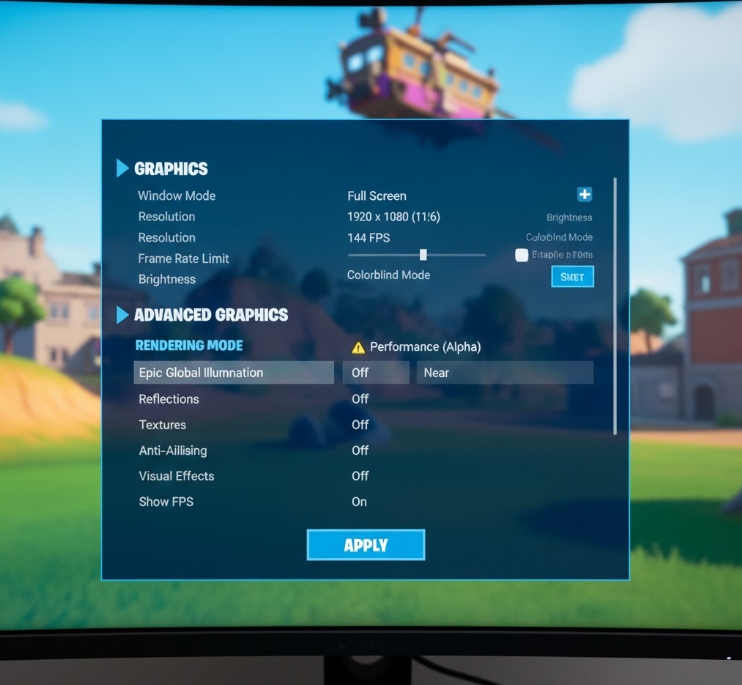
Fortnite’s graphics settings significantly impact performance. Here’s the optimal configuration for competitive play in 2025:
Recommended competitive settings:
| Setting | Recommended Value | Why |
|---|---|---|
| Window Mode | Fullscreen | Better performance than windowed |
| Display Resolution | Native or 1600×900 | Lower res = more FPS |
| Frame Rate Limit | Unlimited or 240 | Let hardware push maximum |
| Quality Presets | Performance Mode | Activates optimized rendering |
| 3D Resolution | 100% | Lower if desperate for FPS |
| View Distance | Near or Medium | Minimal competitive disadvantage |
| Shadows | Off | Huge FPS gain |
| Anti-Aliasing | Off | Saves significant resources |
| Textures | Low or Medium | Depends on VRAM |
| Effects | Low | Explosions cause FPS drops |
| Post Processing | Low | Minimal visual impact |
| Vsync | Off | Reduces input lag |
| Motion Blur | Off | Clarity and performance |
| Show FPS | On | Monitor performance |
Performance Mode (Most Important Setting):
Fortnite’s Performance Mode, introduced in Chapter 2, uses DirectX 11 with optimized rendering. This provides:
- 20-30% FPS increase on most systems
- Reduced VRAM usage
- Better multi-threading on CPUs
- Slight visual downgrade but massively better performance
Enable it: Settings > Video > Advanced Graphics > Performance Mode (Alpha)
Resolution Scaling:
If you’re still struggling after these settings:
- Lower 3D Resolution to 80-90% (maintains UI sharpness while reducing rendering load)
- Drop display resolution to 1600×900 or 1280×720
- Native resolution with low settings almost always beats high resolution with high settings
Testing your settings:
After changing settings, test in Creative mode with structures and effects. Monitor FPS with the counter enabled. Consistent 60+ FPS minimum for smooth play; competitive players aim for 144+ or 240+.
PC Optimization: Windows and Drivers
GPU Driver Updates
Outdated or corrupted drivers are the number one cause of FPS drops:
For NVIDIA GPUs:
- Visit NVIDIA Driver Downloads
- Select your GPU model
- Download latest Game Ready Driver
- Use “Custom Installation” and check “Clean Installation”
- Restart after installation
For AMD GPUs:
- Visit AMD Driver Support
- Detect your GPU or select manually
- Download Adrenalin Software
- Use “Factory Reset” option during installation
- Restart after installation
Important: Always use “Clean Installation” to remove old driver remnants that cause conflicts.
Driver verification:
After updating, verify the installation:
- NVIDIA: Right-click desktop > NVIDIA Control Panel > System Information
- AMD: Right-click desktop > AMD Software > Settings > System
Check the driver version matches what you just installed.
Windows Optimization
Windows often interferes with gaming performance. Here’s how to optimize:
Disable Windows Game Bar and DVR:
- Open Settings > Gaming
- Turn off Game Bar
- Go to Captures tab
- Disable Background Recording
- Disable Record in the Background While I’m Playing
These features consume resources and cause stuttering.
Set High Performance Power Plan:
- Open Control Panel > Power Options
- Select “High Performance” plan
- Or create custom plan with minimum processor state at 100%
This prevents CPU throttling during gameplay.
Disable Fullscreen Optimizations:
- Navigate to Fortnite installation folder
- Right-click FortniteClient-Win64-Shipping.exe
- Properties > Compatibility tab
- Check “Disable fullscreen optimizations”
- Check “Run this program as administrator”
- Apply changes
This bypasses Windows’ fullscreen management that causes input lag.
Adjust Visual Effects:
- Open Control Panel > System > Advanced System Settings
- Performance Settings > Adjust for Best Performance
- Or manually disable animations and transparency
Saves GPU resources for gaming.
Disable Unnecessary Startup Programs:
- Open Task Manager (Ctrl+Shift+Esc)
- Startup tab
- Disable non-essential programs (Discord, Spotify, etc. can stay if needed)
- Focus on disabling manufacturer bloatware
Frees RAM and CPU resources.
Background Application Management
Close resource-heavy applications before playing:
Common culprits:
- Chrome/browsers with multiple tabs (RAM hog)
- Discord with hardware acceleration enabled
- RGB software (Razer, Corsair, etc.)
- Cloud sync services (OneDrive, Dropbox)
- Antivirus real-time scanning
- Video recording software
How to check:
Open Task Manager while Fortnite runs (Alt+Tab):
- Check CPU, Memory, GPU usage
- Sort by resource usage
- Close programs consuming significant resources
Optimal gaming setup:
- Close browser or limit to 2-3 tabs
- Disable Discord hardware acceleration (Settings > Advanced > Hardware Acceleration)
- Pause cloud sync temporarily
- Use Windows Defender (lighter than third-party antivirus)
PC Optimization: Advanced Fixes
Thermal Throttling Solutions
Overheating causes performance drops as components throttle to prevent damage.
Check your temperatures:
Download HWMonitor or MSI Afterburner:
- GPU should stay under 80-85°C during gaming
- CPU should stay under 80-90°C
- Higher temps = thermal throttling = FPS drops
Cooling solutions:
Immediate fixes:
- Clean dust from PC (compressed air)
- Improve case airflow (remove panels temporarily to test)
- Elevate laptop for better airflow
- Use laptop cooling pad
- Ensure fans are spinning properly
Long-term solutions:
- Reapply thermal paste on CPU/GPU (requires technical knowledge)
- Add case fans for better airflow
- Undervolt CPU or GPU (reduces heat without losing performance)
- Replace failing fans
- Consider AIO liquid cooler for CPU
Thermal throttling test:
Run Fortnite with temperature monitor visible. If FPS drops coincide with temperature spikes above 85°C, thermal throttling is your issue.
Storage and RAM Optimization
Install Fortnite on SSD:
If Fortnite is on HDD (hard disk drive):
- Uninstall Fortnite
- Reinstall on SSD (solid state drive)
- Reduces asset loading stutter significantly
Clear temporary files:
- Press Windows+R, type “temp”, delete contents
- Press Windows+R, type “%temp%”, delete contents
- Run Disk Cleanup (search in Windows)
- Clear DirectX Shader Cache
Verify game files:
In Epic Games Launcher:
- Library > Fortnite
- Click three dots
- Verify
This repairs corrupted files causing crashes or stuttering.
RAM considerations:
Fortnite recommends 8GB but benefits from 16GB:
- 8GB: Close all background apps
- 16GB+: More comfortable multitasking
- Check RAM usage in Task Manager during gameplay
If RAM consistently hits 90%+ usage, consider upgrading.
NVIDIA/AMD Control Panel Settings
NVIDIA Control Panel optimization:
- Right-click desktop > NVIDIA Control Panel
- Manage 3D Settings > Program Settings
- Select Fortnite
- Adjust these settings:
- Power Management: Prefer Maximum Performance
- Texture Filtering – Quality: Performance
- Threaded Optimization: On
- Low Latency Mode: Ultra (if supported)
- Vertical Sync: Off
AMD Radeon Software optimization:
- Right-click desktop > AMD Software
- Gaming > Fortnite
- Adjust settings:
- Radeon Anti-Lag: Enabled
- Radeon Boost: Enabled
- Radeon Chill: Disabled
- Image Sharpening: Personal preference
- Vertical Refresh: Always Off
These settings prioritize performance over visual quality at the driver level.
Console Optimization
PS5 and Xbox Series X/S Settings
Current-gen consoles generally run Fortnite smoothly, but optimization helps:
PS5 optimization:
Performance Mode:
- Settings > Video > Toggle 120 FPS mode (requires compatible display)
- Prioritizes framerate over resolution
- Drops resolution to maintain 120 FPS
System settings:
- Settings > Saved Data and Game/App Settings > Game Presets
- Set Performance Mode as default
- Ensure TV/monitor supports 120Hz via HDMI 2.1
Xbox Series X/S optimization:
FPS Boost:
- Fortnite supports 120 FPS mode automatically
- Enable in TV & Display Options > Video Modes > Allow 120Hz
Quick Resume:
- Close and restart Fortnite daily (Quick Resume can cause connection issues)
- Press Xbox button > Highlight Fortnite > Menu > Quit
Universal console tips:
- Clear cache: Fully power down console (not rest mode), unplug for 30 seconds
- Rebuild database (PS5): Boot in Safe Mode > Rebuild Database (doesn’t delete data)
- Use wired connection: Ethernet always beats Wi-Fi for consistency
- Update system software: Keep console firmware current
- Free up storage: Delete unused games; fuller drives perform worse
PS4 and Xbox One Optimization
Older consoles struggle more with modern Fortnite:
Lower settings:
- Turn off optional visual features
- Accept 60 FPS cap (hardware limitation)
- Consider upgrading to current-gen if budget allows
PS4 specific:
- Rebuild database regularly (reduces stuttering)
- Clean fan vents (overheating causes throttling)
- Replace thermal paste if comfortable (older PS4s overheat)
Xbox One specific:
- Clear persistent storage: Settings > Devices & Connections > Blu-ray > Persistent Storage > Clear
- Hard reset regularly
- Ensure adequate ventilation
Reality check:
Base PS4 and Xbox One are reaching end-of-life for competitive Fortnite. You can optimize settings, but hardware limitations exist. Consider upgrade if serious about performance.
Network Optimization
Internet Connection Fixes
Network lag is often more frustrating than FPS drops because it’s less predictable:
Use wired connection (Most Important):
Wi-Fi introduces latency and packet loss:
- Run Ethernet cable from router to PC/console
- If impossible, move closer to router or use powerline adapter
- Wi-Fi should be absolute last resort for competitive gaming
Router optimization:
Enable QoS (Quality of Service):
- Access router admin panel (usually 192.168.1.1)
- Find QoS settings
- Prioritize gaming device
- Limit bandwidth for streaming/downloads during gameplay
Change Wi-Fi channel (if using Wi-Fi):
- Use Wi-Fi analyzer app to find less congested channel
- 2.4GHz: Use channels 1, 6, or 11
- 5GHz: More channels available, less interference
- Set in router admin panel
Update router firmware:
- Check manufacturer website for updates
- Outdated firmware causes connection stability issues
Reset router/modem:
- Full power cycle weekly
- Unplug both for 30 seconds
- Plug modem first, wait 2 minutes
- Plug router, wait 2 minutes
- Test connection
DNS Server Optimization
DNS servers translate website names to IP addresses. Faster DNS reduces latency:
Recommended DNS servers:
- Cloudflare: 1.1.1.1 / 1.0.0.1 (fast, privacy-focused)
- Google: 8.8.8.8 / 8.8.4.4 (reliable)
- OpenDNS: 208.67.222.222 / 208.67.220.220
How to change DNS (Windows):
- Control Panel > Network and Internet > Network Connections
- Right-click your connection > Properties
- Select Internet Protocol Version 4 (TCP/IPv4)
- Properties > Use the following DNS server addresses
- Enter preferred and alternate DNS
- OK > Close
How to change DNS (Console):
PS5:
- Settings > Network > Settings > Set Up Internet Connection
- Select your connection
- DNS Settings > Manual
- Enter primary and secondary DNS
Xbox:
- Settings > General > Network Settings > Advanced Settings
- DNS Settings > Manual
- Enter primary and secondary DNS
Test improvement:
Run speed test before and after. Lower ping = better DNS choice for your location.
Server Selection and Matchmaking
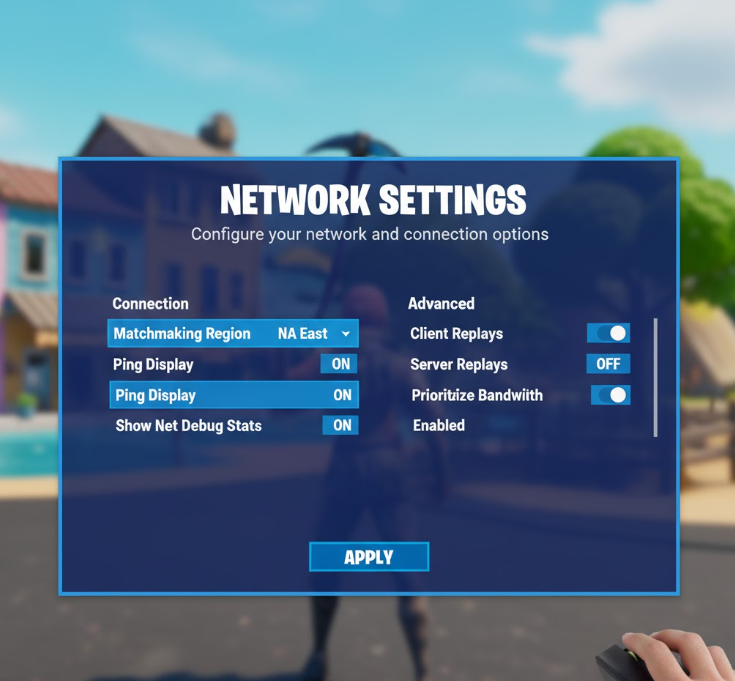
Check your server region:
Fortnite auto-selects servers, but verify:
- Lobby > Settings > Matchmaking Region
- Select closest geographic region
- Lower ping regions provide better experience
Ping considerations:
- 0-30ms: Excellent
- 30-50ms: Good
- 50-100ms: Playable but noticeable delay
- 100ms+: Significant lag, consider different region if available
Avoid playing during peak hours:
Network congestion peaks 6-11 PM local time:
- More players = server strain
- ISP congestion increases
- Play early morning or afternoon for best performance
Test different regions:
If your default region has high ping, try nearby regions. Sometimes routing issues make distant servers faster than local ones.
Hardware Solutions
When Software Fixes Aren’t Enough
Sometimes your hardware just can’t keep up with modern Fortnite. Here’s what to consider:
Minimum vs. Recommended specs (2025):
Minimum (60 FPS Low Settings):
- CPU: Intel Core i3-3225 / AMD equivalent
- GPU: NVIDIA GTX 660 / AMD Radeon HD 7870
- RAM: 8GB
- Storage: SSD recommended
Recommended (144+ FPS Competitive):
- CPU: Intel Core i5-10600K / AMD Ryzen 5 5600X or better
- GPU: NVIDIA RTX 3060 / AMD RX 6600 XT or better
- RAM: 16GB DDR4
- Storage: NVMe SSD
Most impactful upgrades:
Priority 1: GPU upgrade
- Biggest FPS impact for Fortnite
- RTX 3060 or RX 6600 XT provide excellent 1080p performance
- RTX 4060 or RX 7600 for 2025 best value
Priority 2: SSD installation
- Eliminates asset loading stutter
- $50-100 for 500GB SSD worth it
- Move Fortnite and Windows to SSD
Priority 3: RAM upgrade
- 8GB to 16GB if constantly hitting memory limits
- Check Task Manager memory usage during gameplay
- DDR4 RAM is affordable in 2025
Priority 4: CPU upgrade
- Only if CPU is bottlenecking GPU (check usage percentages)
- Less impactful than GPU for Fortnite specifically
- Expensive upgrade requiring potential motherboard change
Budget considerations:
Used market offers great value:
- GTX 1660 Super / RX 580 for budget builds
- Check r/hardwareswap or local classifieds
- Verify hardware works before purchasing
Monitor and Display Issues
Your monitor affects perceived performance:
Refresh rate matters:
60Hz monitor caps at 60 FPS:
- Getting 144 FPS on 60Hz monitor wastes performance
- Upgrade to 144Hz monitor for competitive play
- 240Hz for high-level competitive (diminishing returns)
Enable high refresh rate:
Windows:
- Settings > System > Display > Advanced Display Settings
- Refresh Rate > Select 144Hz or 240Hz
NVIDIA:
- NVIDIA Control Panel > Change Resolution
- Select native resolution at highest refresh rate
Input lag reduction:
- Enable Game Mode on gaming monitors
- Disable motion smoothing/interpolation features
- Use DisplayPort over HDMI when possible (better bandwidth)
G-Sync/FreeSync:
Variable refresh rate reduces screen tearing:
- Enable in GPU control panel
- Enable on monitor settings
- Works when FPS is between monitor’s VRR range
Troubleshooting Specific Issues
Stuttering During Builds
Building causes FPS drops due to rapid object creation:
Specific fixes:
- Lower “Effects” setting to Low (building effects cause stuttering)
- Reduce “View Distance” (less to render during build fights)
- Enable Performance Mode (optimized rendering)
- Close background applications (frees CPU resources)
- Verify RAM isn’t maxed during builds (Task Manager check)
Hardware solution:
Building is CPU-intensive. If CPU usage hits 100% during builds, upgrade needed.
Storm Circle FPS Drops
The storm effect taxes GPUs:
Fixes:
- Lower “Post Processing” to Low
- Reduce “Effects” to Low
- Enable Performance Mode (simplified storm rendering)
- Close background GPU applications
Testing:
Creative mode with storm settings enabled. Adjust settings until consistent FPS maintained.
Late Game Lag
Many players in small area causes performance issues:
Optimization:
- All low settings essential for arena endgame
- Performance Mode mandatory
- Consider lowering 3D resolution to 80%
- Ensure CPU and GPU aren’t thermal throttling
Reality:
Late-game arena lobbies stress even high-end systems. Pro players use top-tier hardware for reason.
Packet Loss and Rubberbanding
Network issue, not FPS:
Diagnosis:
- Open Command Prompt
- Type: ping google.com -t
- Let it run during gameplay
- Check for dropped packets or ping spikes
Solutions:
- Switch to wired connection
- Update network drivers
- Contact ISP if persistent (they may be throttling)
- Try VPN (sometimes routes traffic better, but adds latency)
Monitoring and Maintenance
Performance Monitoring Tools
Track metrics to identify issues:
In-game FPS counter:
- Fortnite Settings > Video > Show FPS
- Monitors FPS and ping in real-time
MSI Afterburner (PC):
- Shows FPS, GPU/CPU temps, usage percentages
- Overlay displays during gameplay
- Free and comprehensive
Task Manager (PC):
- Performance tab shows CPU, RAM, GPU, network usage
- Identifies resource bottlenecks
What to monitor:
- FPS: Should match your monitor’s refresh rate ideally
- GPU usage: Should be 95-100% (if lower, CPU bottleneck)
- CPU usage: 60-80% normal, 100% indicates bottleneck
- Temperatures: Under 85°C for both CPU and GPU
- RAM usage: Under 80% for smooth operation
- Ping: Under 50ms for competitive play
Regular Maintenance Schedule
Weekly:
- Clear temporary files
- Restart router/modem
- Check for Windows/driver updates
Monthly:
- Clean PC dust filters
- Verify game files
- Review background startup programs
- Check storage space (maintain 20% free)
Every 3-6 months:
- Deep clean PC internals
- Update BIOS (if comfortable)
- Review and uninstall unused programs
- Benchmark to check for performance degradation
Annually:
- Consider thermal paste replacement (PC)
- Evaluate hardware upgrade needs
- Deep clean console (dust removal)
When to Seek Professional Help
Signs You Need Expert Assistance
Some issues require technical expertise:
Hardware failures:
- Crashes with error codes
- Artifacting or screen glitches
- Burning smell from PC
- Fans making grinding noises
- Computer won’t boot
Complex network issues:
- Consistent packet loss after all fixes
- ISP-level routing problems
- Network hardware failures
- Advanced router configuration needed
Professional services:
- Local computer repair shops for hardware
- ISP technical support for network issues
- PC building communities (r/buildapc) for upgrade advice
- Professional PC builders for custom builds
DIY limitations:
Don’t attempt if uncomfortable:
- Opening laptop or console (warranty void)
- Advanced BIOS modifications
- Hardware installation without research
- Electrical work on components
The Performance Checklist
Complete Optimization Workflow
Here’s your step-by-step guide to fix performance issues:
Phase 1: Quick Wins (30 minutes)
- [ ] Update GPU drivers (clean installation)
- [ ] Enable Fortnite Performance Mode
- [ ] Lower in-game graphics settings
- [ ] Close background applications
- [ ] Restart router and modem
- [ ] Switch to wired connection if possible
Phase 2: Windows Optimization (1 hour)
- [ ] Disable Game Bar and DVR
- [ ] Set High Performance power plan
- [ ] Disable fullscreen optimizations
- [ ] Clear temporary files
- [ ] Verify game files
- [ ] Update Windows fully
- [ ] Adjust NVIDIA/AMD control panel
Phase 3: Deep Optimization (2-3 hours)
- [ ] Clean PC dust and check temperatures
- [ ] Optimize startup programs
- [ ] Change DNS servers
- [ ] Configure router QoS
- [ ] Install/move Fortnite to SSD
- [ ] Adjust monitor refresh rate settings
- [ ] Benchmark before and after changes
Phase 4: Hardware Evaluation
- [ ] Monitor temperatures during gameplay
- [ ] Check CPU/GPU usage percentages
- [ ] Evaluate RAM usage
- [ ] Research upgrade path if needed
- [ ] Consider professional assessment
Testing methodology:
After each phase:
- Launch Fortnite Creative
- Build extensively while monitoring FPS
- Note average FPS and low points
- Compare to baseline before changes
This systematic approach isolates what actually improves performance.
Conclusion
FPS drops and lag in Fortnite are frustrating, but they’re almost always fixable. Whether your issue stems from software configuration, hardware limitations, or network problems, the solutions in this guide address the most common culprits.
Start with the quick wins: update drivers, enable Performance Mode, close background apps, and optimize in-game settings. These take minimal time and often provide significant improvement. If problems persist, work through Windows optimization and network configuration systematically.
For hardware-limited systems, accept that older components eventually reach their limits. A GTX 960 can’t maintain 144 FPS in 2025’s Fortnite, and that’s okay. Optimize what you have, and plan upgrades strategically when budget allows. The good news: Fortnite scales well, so even modest hardware runs it acceptably with proper settings.
Remember that performance optimization is ongoing maintenance, not a one-time fix. Games update, drivers change, and systems degrade over time. Regular maintenance and monitoring catch issues before they become problems.
Most importantly: don’t let performance issues kill your enjoyment. Fortnite is fun at 60 FPS, 144 FPS, or 240 FPS. Yes, higher framerates provide competitive advantages, but they don’t replace game sense, building skill, and aim. Optimize your setup, then focus on improving your gameplay.
Now get out there and claim those victory royales without stuttering, freezing, or rubber-banding. Your hardware is no longer holding you back.
What performance issues are you still experiencing after trying these fixes? Which solution made the biggest difference for you? Share your setup, problems, and victories in the comments. Someone with similar hardware might benefit from your experience, and the community can help troubleshoot persistent issues.
FAQ: Fortnite Performance Issues
Why does my FPS drop suddenly in Fortnite?
Sudden FPS drops typically stem from thermal throttling (overheating), background applications consuming resources, outdated GPU drivers, or Windows updates running in the background. Check your temperatures first with HWMonitor. If GPU/CPU exceeds 85°C, cooling is your issue. If temperatures are fine, close background apps and update graphics drivers. Windows Game DVR and Game Bar also cause sudden stuttering.
How do I get 144 FPS in Fortnite 2025?
Achieving 144 FPS requires: 1) Hardware capable of it (GTX 1660 Super or better, decent CPU), 2) Performance Mode enabled, 3) All graphics settings on Low except Textures (Low/Medium), 4) Frame rate limit set to unlimited, 5) Background apps closed, 6) Updated GPU drivers. If you have capable hardware but can’t reach 144 FPS, thermal throttling or CPU bottleneck is likely the issue.
Does Fortnite run better on PC or console?
High-end PCs outperform consoles with 240+ FPS capability, but current-gen consoles (PS5/Xbox Series X) offer excellent performance at 120 FPS with zero configuration needed. Budget PCs often perform worse than consoles. Mid-range gaming PCs ($800-1200) generally match or slightly exceed console performance with more customization options. Choose based on budget and whether you value flexibility (PC) or plug-and-play simplicity (console).
Why is my ping so high in Fortnite?
High ping (latency) results from: 1) Wi-Fi connection instead of wired Ethernet, 2) Geographic distance from game servers, 3) ISP routing issues or throttling, 4) Network congestion during peak hours, 5) Background downloads/streaming consuming bandwidth, 6) Poor DNS servers. Switch to Ethernet first (biggest impact), then change DNS servers to Cloudflare (1.1.1.1), close bandwidth-heavy apps, and verify you’re on the closest server region.
Will more RAM fix FPS drops in Fortnite?
More RAM fixes FPS drops only if you’re currently maxing out your existing RAM. Open Task Manager during gameplay and check memory usage. If consistently above 90%, upgrade from 8GB to 16GB will help significantly. If RAM usage is below 80%, additional RAM won’t improve FPS, focus on GPU, drivers, or graphics settings instead. RAM is rarely the bottleneck for Fortnite specifically.
Sources & Additional Resources
- Epic Games Fortnite Support – Official troubleshooting guides – Official performance guides and technical support
- NVIDIA GeForce Experience – Automatic game optimization and driver updates for NVIDIA GPU users
- r/FortniteCompetitive Reddit – Community performance tips, hardware recommendations, and troubleshooting discussions